
For plan managers
Welcome to the Plan Manager dashboard
Invite your staff, keep accounts up to date, and see your team's data, all from one place.
Getting started
Every organization needs a plan manager
Your organization needs at least one plan manager, and you can add as many as you need.
Not sure who your plan manager is, or need to add one? Email us at help@slptoolkit.com.
Accept your invitation first
Plan managers must accept their invitation before they can open the dashboard.
Already set up? Log in to the dashboard.
What you can do
Manage your team from the dashboard
Pick a task for step-by-step help in our Knowledge Base.
Add staff
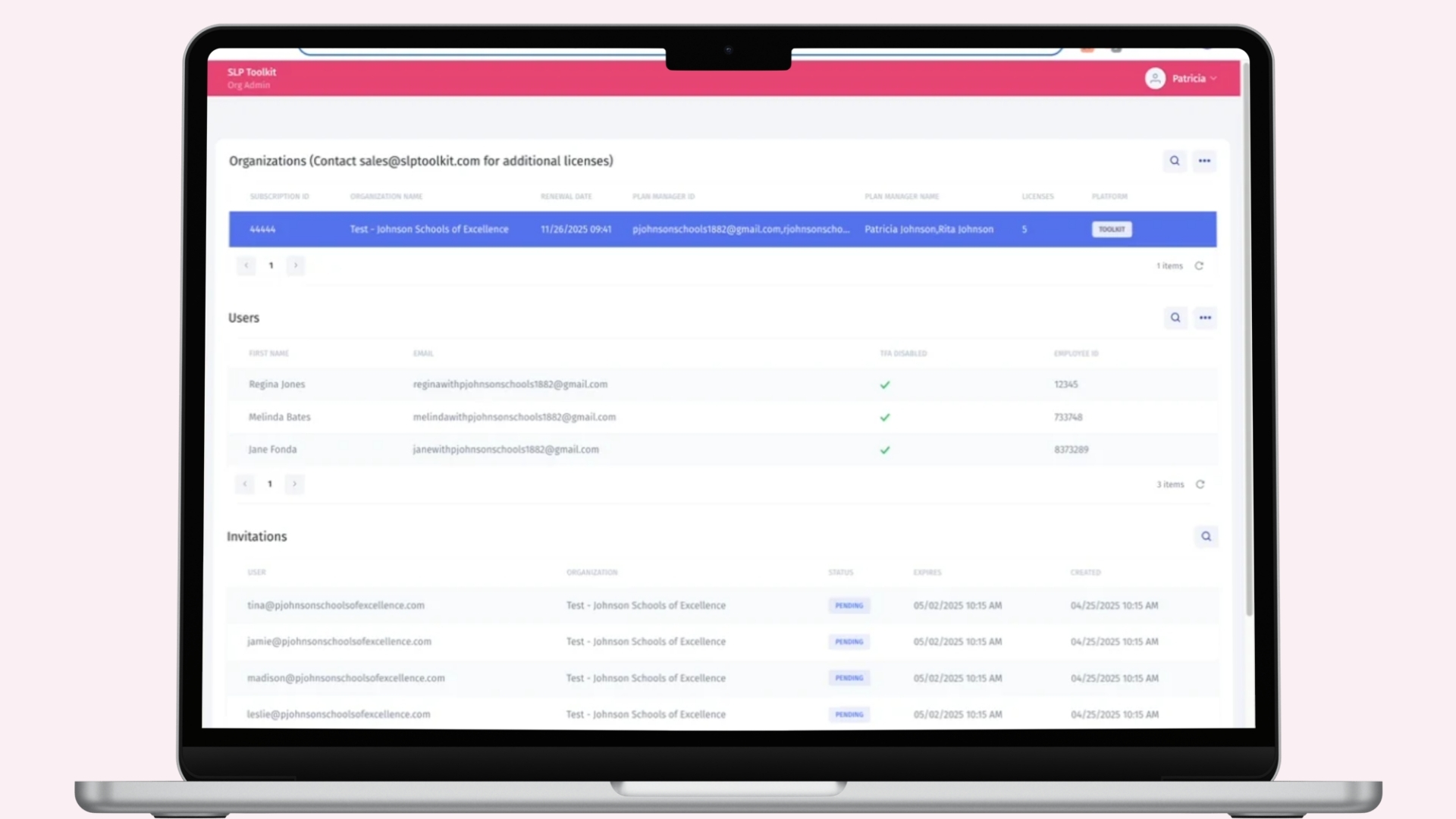
Send invitations
- Invite your staff right from the dashboard.
- Staff who already have SLP Toolkit accounts switch to a district license as soon as they accept.
When staff change
Update or transfer accounts
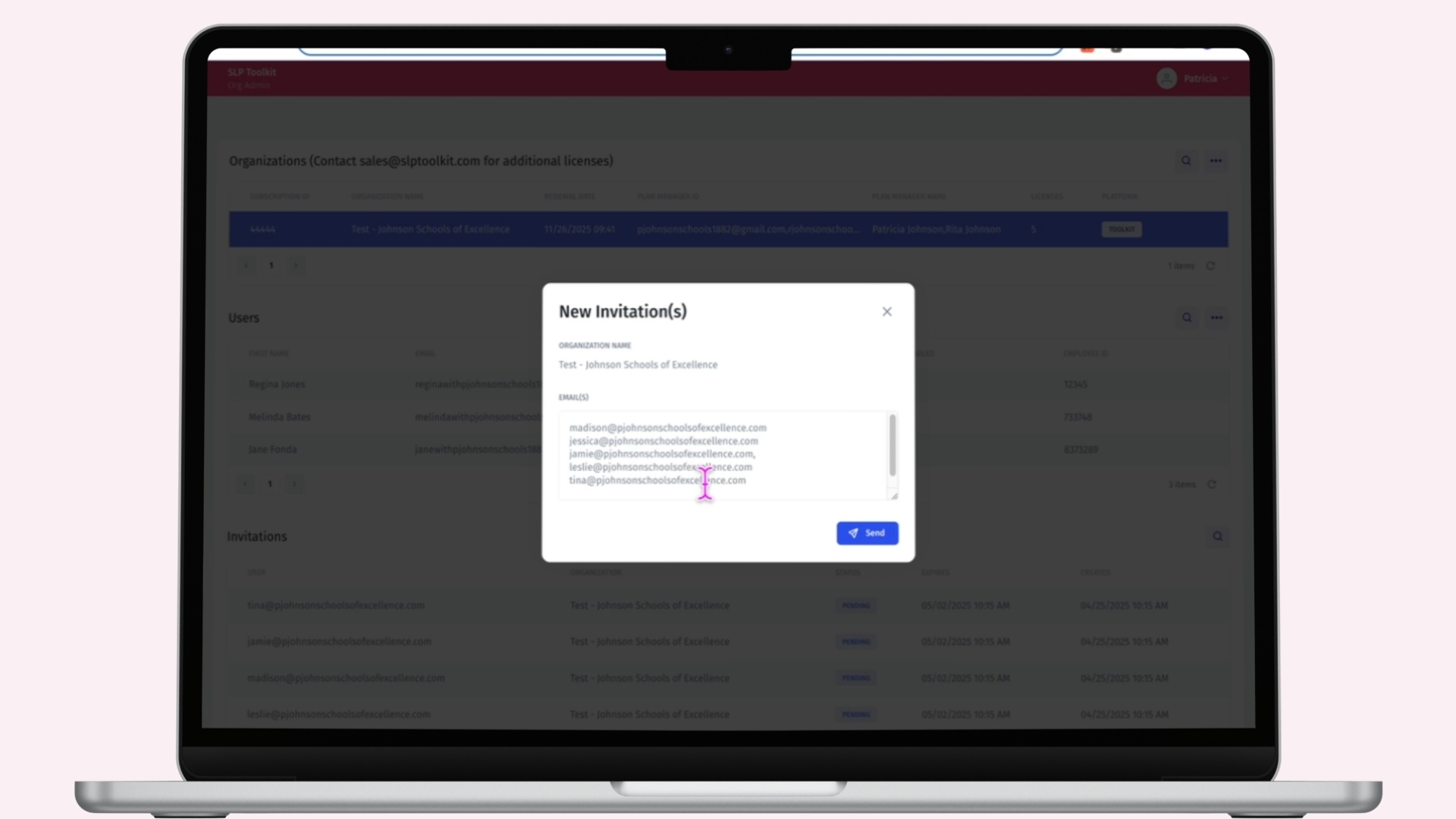
- Update a user's name or email address.
- When someone leaves, move their whole account, with all student data, to a new staff member.
Quick fixes
Troubleshooting
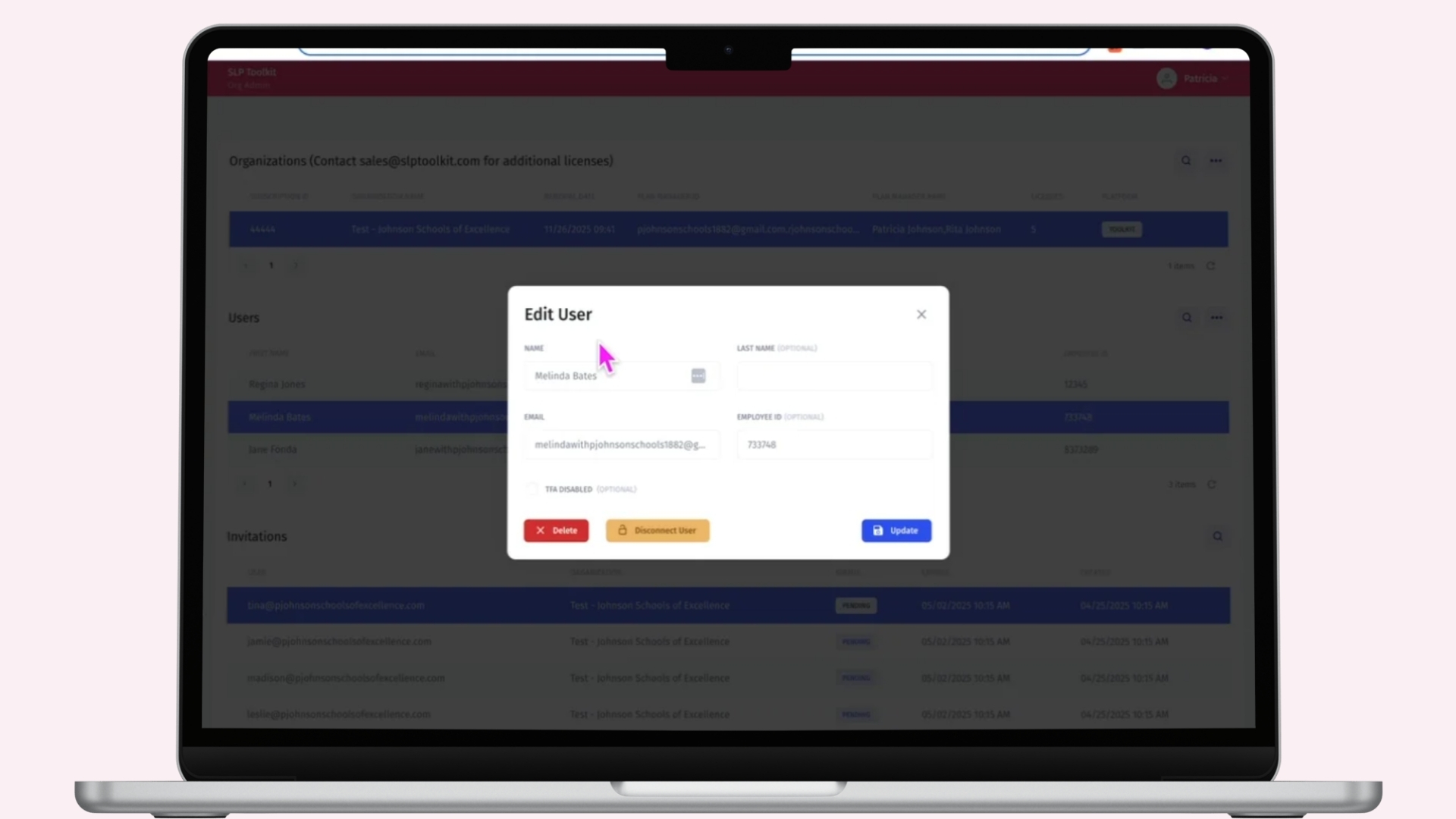
- The most common snags plan managers run into, and how to fix each one.
More from the dashboard
Licenses, reports, and Medicaid
Licenses
Delete or disconnect accounts
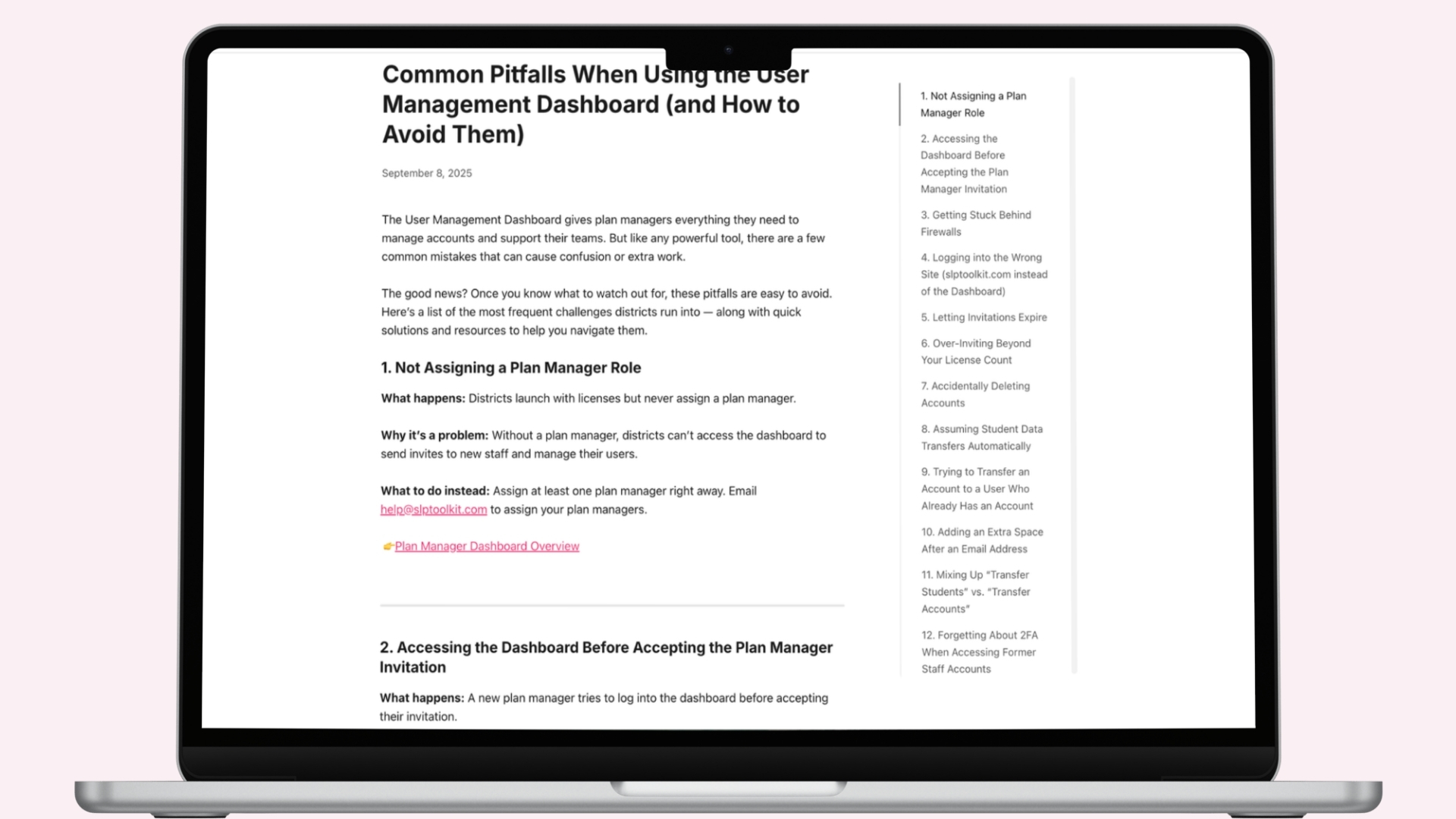
- Your licenses can move between staff at any time during your subscription.
- Delete or disconnect an account to free up a license for someone new.
Reports
Generate reports
- See your providers' therapy session data, caseloads, student attendance, and more.
Medicaid
Streamline Medicaid
- Use SLP Toolkit reports for Medicaid billing.
- Learn about our Medicaid billing partnerships.
Need a hand?
We're happy to help. Email us at help@slptoolkit.com, or search the Knowledge Base for step-by-step answers.
Visit the Knowledge Base